Elevations on Poly
Icon: |
  |
Introduction
The Elevations on Poly tool enables the user to create Labels diplaying surface information on polyline vertices or picked points on a polyline. Each Label is stored in a list and can be individually styled according to user requirements.
The user can create a Label Set which will contain custom Label Styles and choose polyline objects.
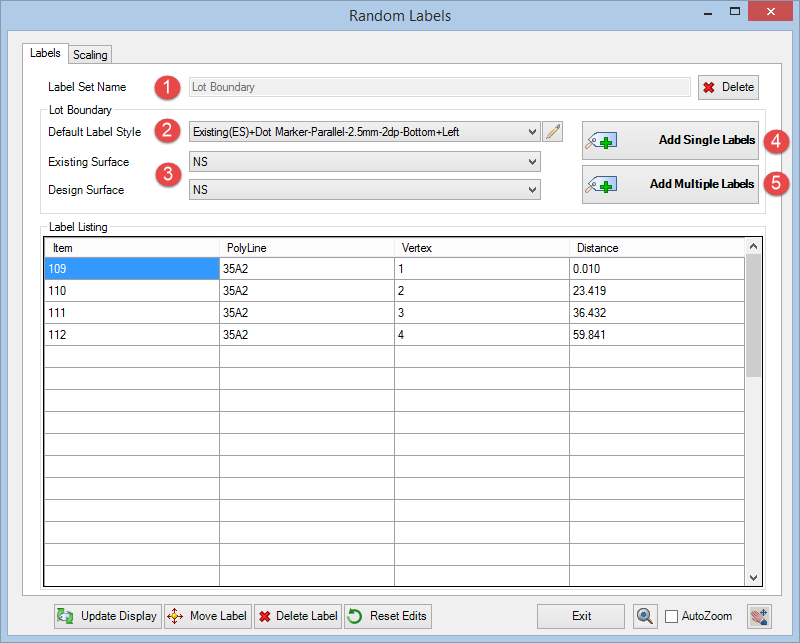
In the example below, the user can  create a Label Set called 'Lot Boundary',
  create/choose a Label Style which displays a marker/level at each vertex and
  reference Surfaces (NS = Natural Surface),
The user can choose from Labelling  single picked points along the polyline or
  multiple points at each vertex.
 |
**WARNING** Please note that EXPLODING polylines that have Labels will result in the permanent deletion of the Labels. The Label items will still remain listed in the Label Listing table but cannot be retrieved.
Details
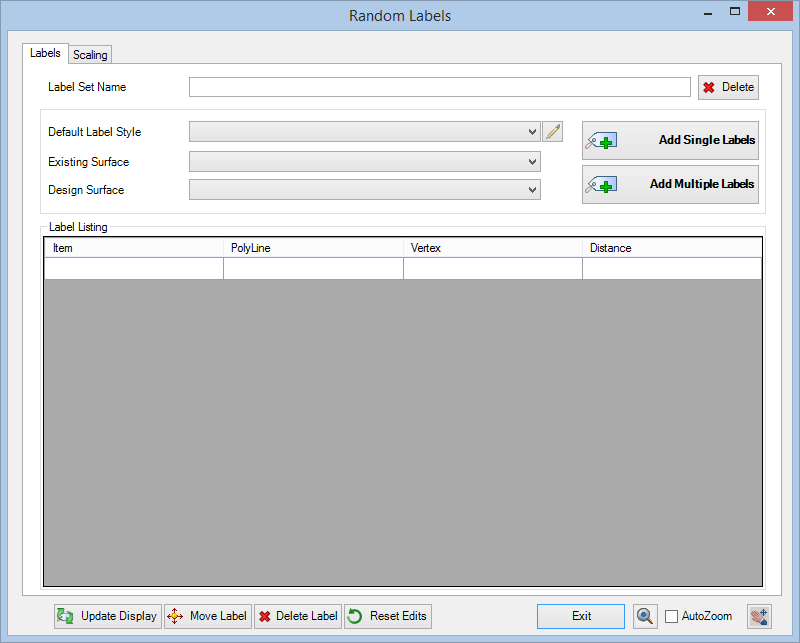
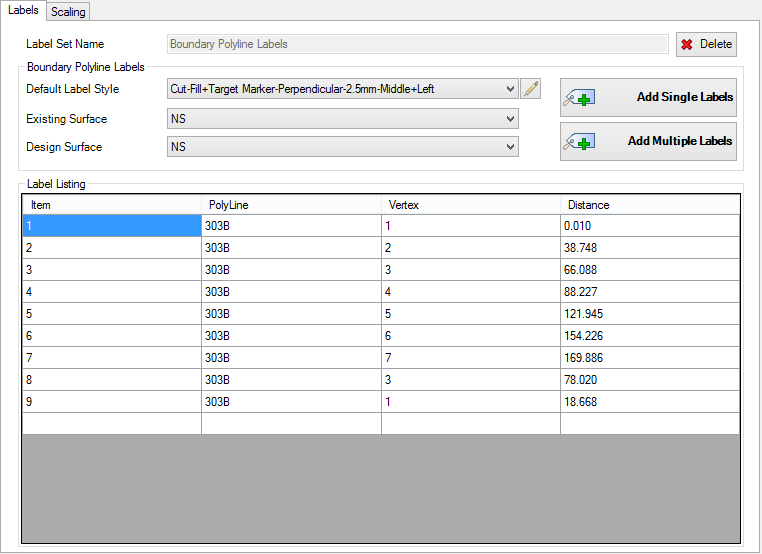
Upon selecting the command the following form is displayed:
|
|
|||||||||||||||||||||||
|
Label Set Name |
Name of the currently selected label set (not editable). |
||||||||||||||||||||||
|
|
Delete the current Label Set Name with option to delete all associated label objects in drawing |
||||||||||||||||||||||
|
Labels Tab |
This tab manages the parameters for the labels |
||||||||||||||||||||||
|
|
|
||||||||||||||||||||||
|
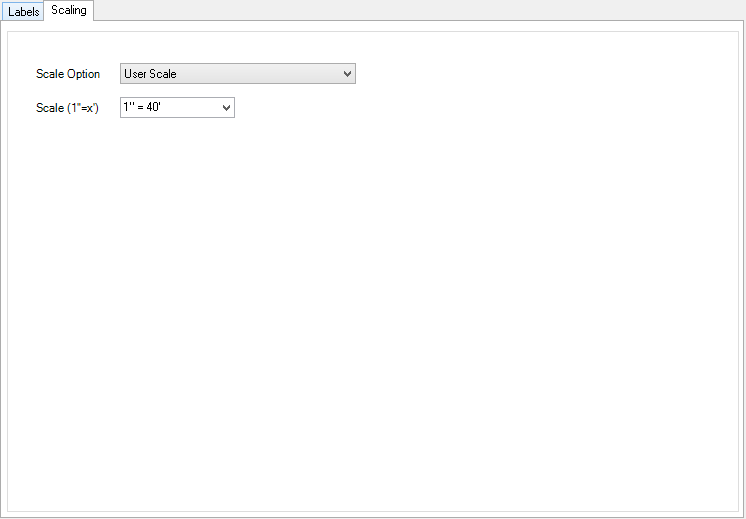
Scaling Tab |
This tab manages the scaling of the labels within the drawing |
||||||||||||||||||||||
|
|
|
||||||||||||||||||||||
|
Output / Editting |
These functions enable the user to edit & refine the labels in the drawing |
||||||||||||||||||||||
 |
|||||||||||||||||||||||
|
|
Select to update the display of all labels in the drawing |
||||||||||||||||||||||
|
|
Select a label from the list to move within drawing. User will be prompted to pick a new label position on screen |
||||||||||||||||||||||
|
|
Select a single label from the list and delete from the drawing |
||||||||||||||||||||||
 |
Select to reset grip editted labels to default positions. This will also restore any Labels that have been accidentally erased from the drawing. | ||||||||||||||||||||||
 |
Ticking this box will zoom the screen to a selected label in the list | ||||||||||||||||||||||
 |
Exit the Surface Labels command | ||||||||||||||||||||||

 Edit Label Style
 Label Styles