Language Settings
Icon: |

 |
Introduction
This command provides users with the ability to switch language from English to another language.
Language switching is managed via translation files. The software reads the translation file during startup and when a 'switch' is applied via this command and translates all original text to translated text.
Details
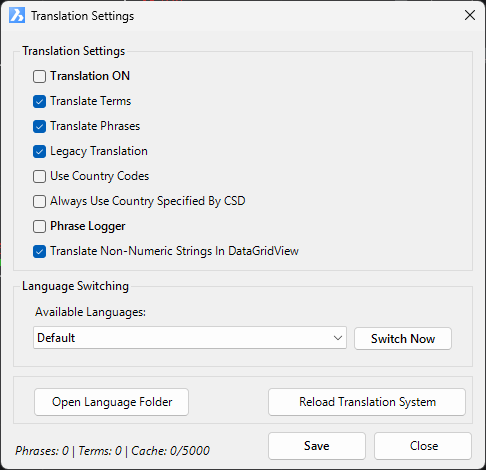
Upon selecting the command the following form is displayed:
|
|
|
|
Translation Settings |
Group settings for translation behavior |
|
Translation ON |
Checkbox to enable or disable the translation feature. If enabled, the following controls apply. |
|
Translate Terms |
Checkbox to enable translation of specific terms (single words). This looks for a file called VariableTerms.ini located in the CSA Settings/Language folder |
|
Translate Phrases |
Checkbox to enable translation of phrases (collections of words). This looks for a file called VariablePhrases.ini located in the CSA Settings/Language folder |
|
Legacy Translation |
Checkbox to enable legacy translation methods. By default, this is applied in the software when Translation is not applied |
|
Use Country Codes |
Checkbox to toggle the use of country codes. This will refer to the Windows regional settings to determine the appropriate language file to apply. It will look for files with name <Country Code>_VariablePhrases.ini, where <Country Code> is the two part description of language (eg: es-ES for Spanish) |
|
Always Use Country Specified By CSD |
Checkbox to force the country code specified by CSD. In the Settings, users can set a Country to apply. |
|
Phrase Logger |
Checkbox to enable phrase logging. This will automatically append text found on forms when opened and save to a file called PhraseLogger.log. The contents of this file can be used to append/create a translation file |
|
Translate Non-Numeric Strings In DataGridView |
Checkbox to translate text within data grids in forms. |
|
Language Switching |
Settings for changing the active language |
|
Available Languages |
Dropdown menu to select the desired language. These will be displayed showing the country code. |
|
Switch Now |
Button to apply the selected language to the application. This is recalled when the software is closed and reopened. |
|
Open Language Folder |
Button to open the CSA Settings folder containing language files |
|
Reload Translation System |
Button to refresh the translation system |
|
Save |
Button to save current settings |
|
Close |
Button to close the dialog window |